Paw Patrol Art Studio
Reviews
Description
What Players Actually Do
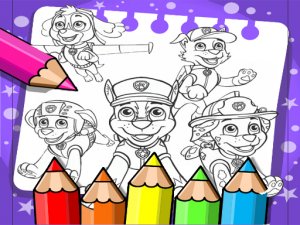
Paw Patrol Art Studio turns the familiar characters of Adventure Bay into blank outlines waiting for color. Each session begins with a choice: pick one of the available scenes, then work through it using the palette that sits alongside the canvas. Tapping or clicking any region fills it instantly with the active color, so the barrier between deciding and seeing a result is almost nonexistent. That immediacy matters for the target age group, because young children lose interest when a tool fights back. Here, it doesn't.
Tools That Support Small Hands
Two features quietly do most of the heavy lifting. Zoom lets a child move in on a character's badge, a paw, or a background detail that would otherwise be a single pixel-wide target. Undo removes the fear of ruining a picture, which encourages bolder color choices instead of cautious, minimal clicking. Neither tool is buried in a menu; both sit within reach, which keeps the experience focused on coloring rather than navigation.
Designed for Independent Play
The interface assumes the player may not read yet. Icons and a visible palette replace text-heavy menus, so a preschooler can open the game and start filling shapes without an adult hovering nearby. There are no timers, no scores, and no failure states. A child can spend two minutes or twenty on a single page, and the game never pushes back.
Sharing and Saving Finished Work
Once a scene is complete, the artwork can be saved to the device or shared with family. That option turns a solitary coloring session into something a child can show off, which reinforces the effort they put in. It also gives parents a simple way to track progress over time by comparing earlier pages with later ones.
✅ Compatibility & Testing
Faq
Comments
Sign in to comment
You must be logged in before posting a review or rating.
No comments yet. Be the first to comment!




Editorial Notes